AI Toolbar
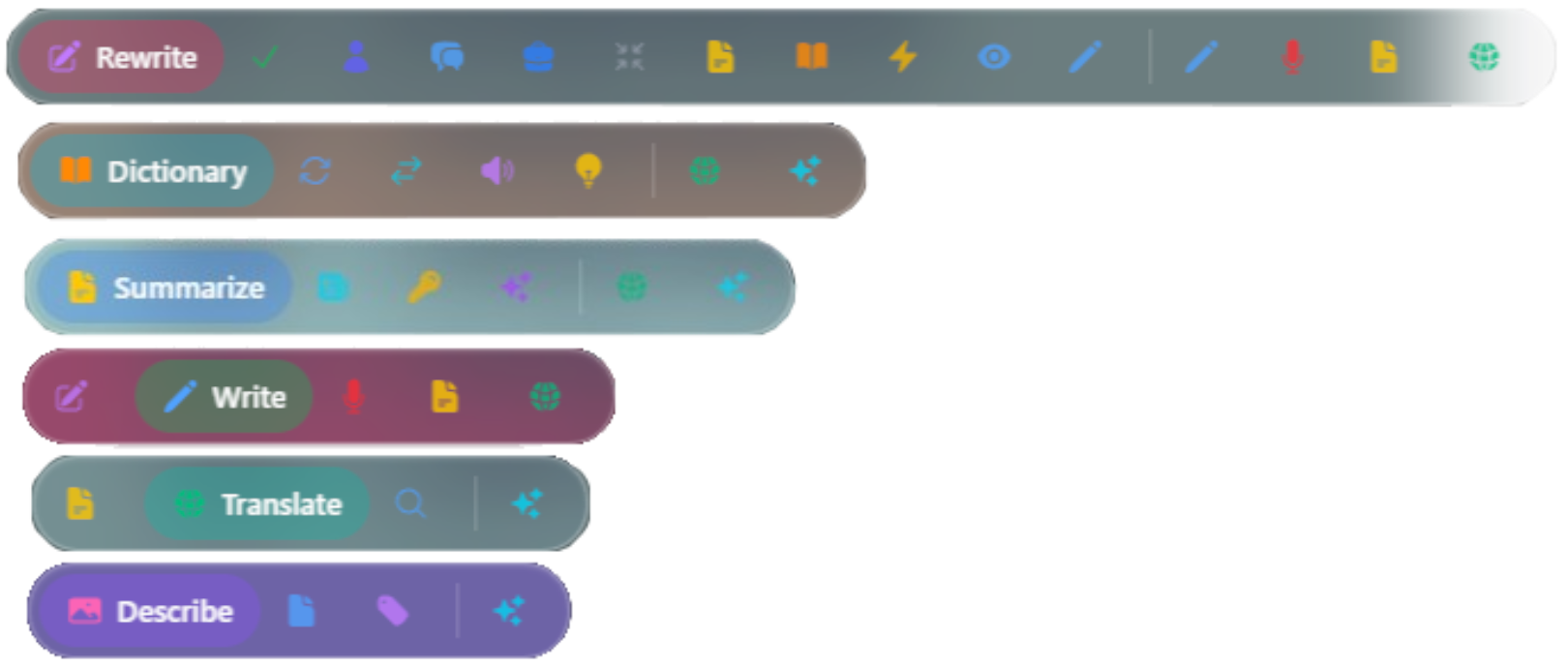
The AI toolbar pops up next to selected text, inside focused input fields, and on hovered images. It's meant for quick work on what's already on the page. No need to open the full chat for a quick rewrite or summary.
When it appears
| Trigger | What shows up |
|---|---|
| Text selection | Rewrite, summarize, translate, dictionary tools, and send-to-chat actions |
| Input focus | Dictation and writing tools for editable fields |
| Image hover | Image analysis tools (if image hover is enabled in Settings → UI) |
What changes based on selection length
The toolbar adapts to what you've selected:
- Single word → dictionary tools (definition, synonyms, antonyms, pronunciation, examples)
- Short phrase → mix of dictionary and summary options
- Full paragraph or more → rewrite, summary, and translate
It's intentional. A single word and a paragraph need different tools.
Rewrite, summarize, translate, write
Rewrite
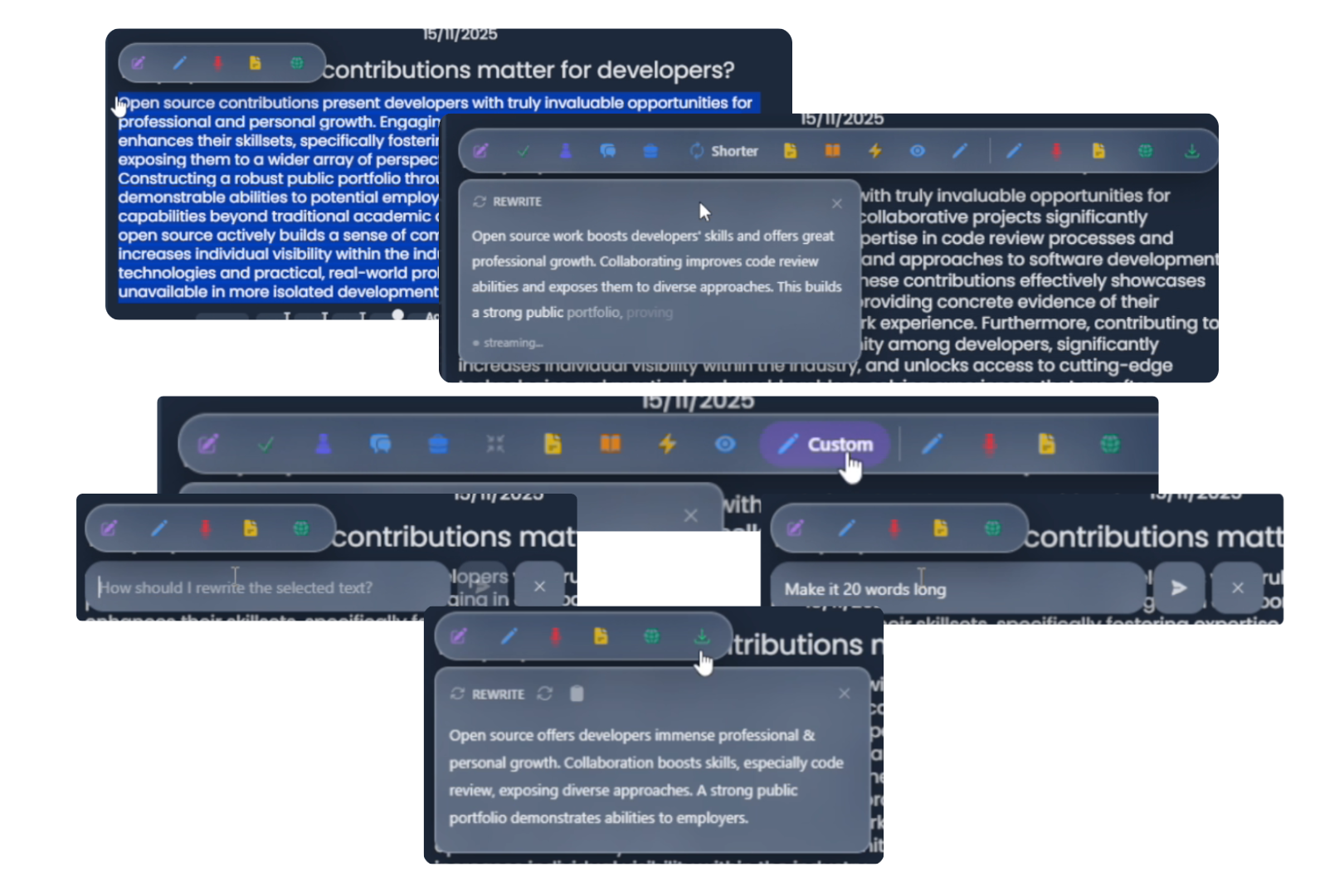
More than just "improve this." Available actions include: fix grammar, fix spelling, professional tone, more formal, more casual, shorter, longer, simplify, concise, clarity, and a custom prompt.
Use it when you have text and want a better version of it.
Summarize
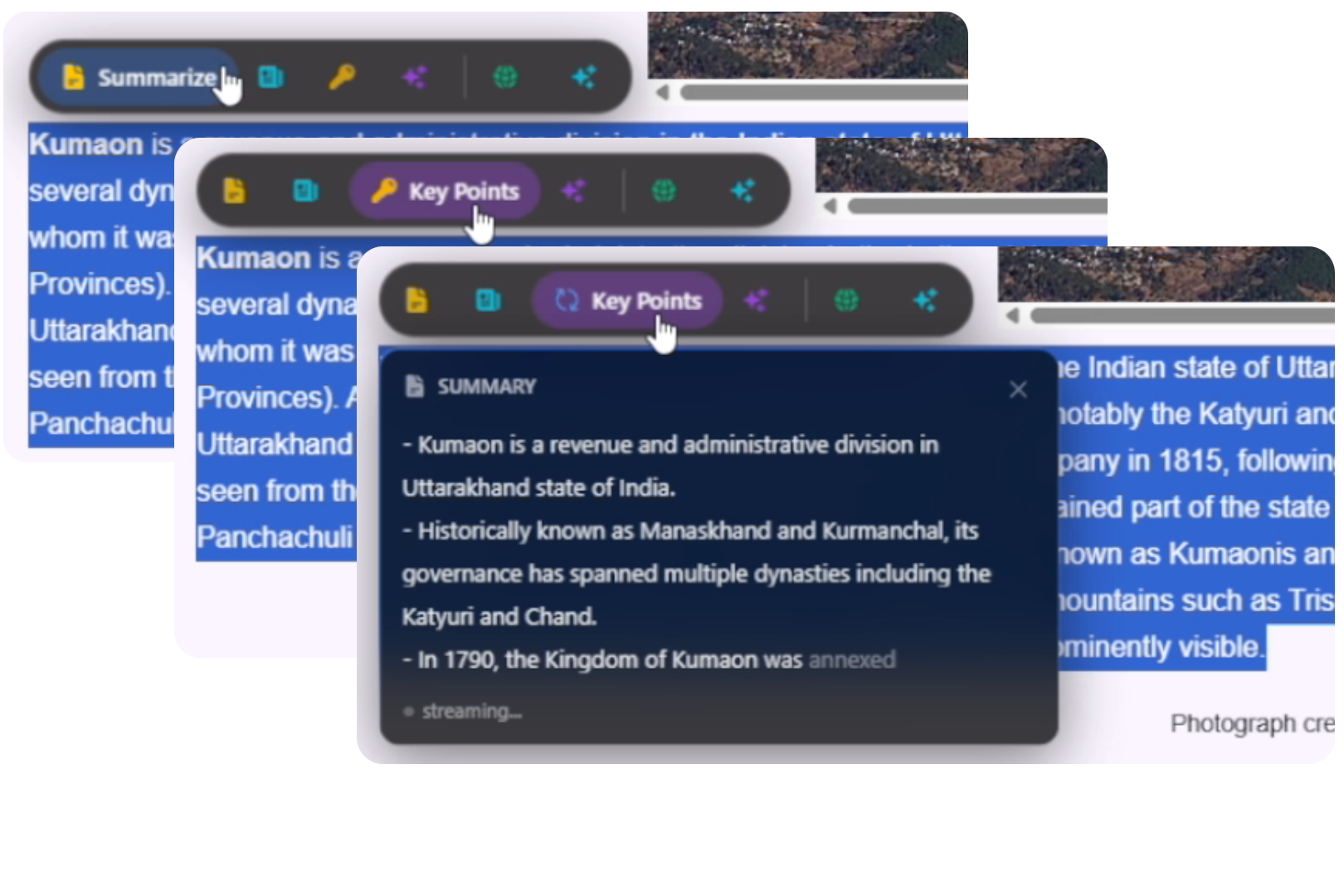
Produces different output shapes: headline, key points, teaser, and other compact formats depending on what you pick. Use it to reduce a passage without rewriting it line-by-line.
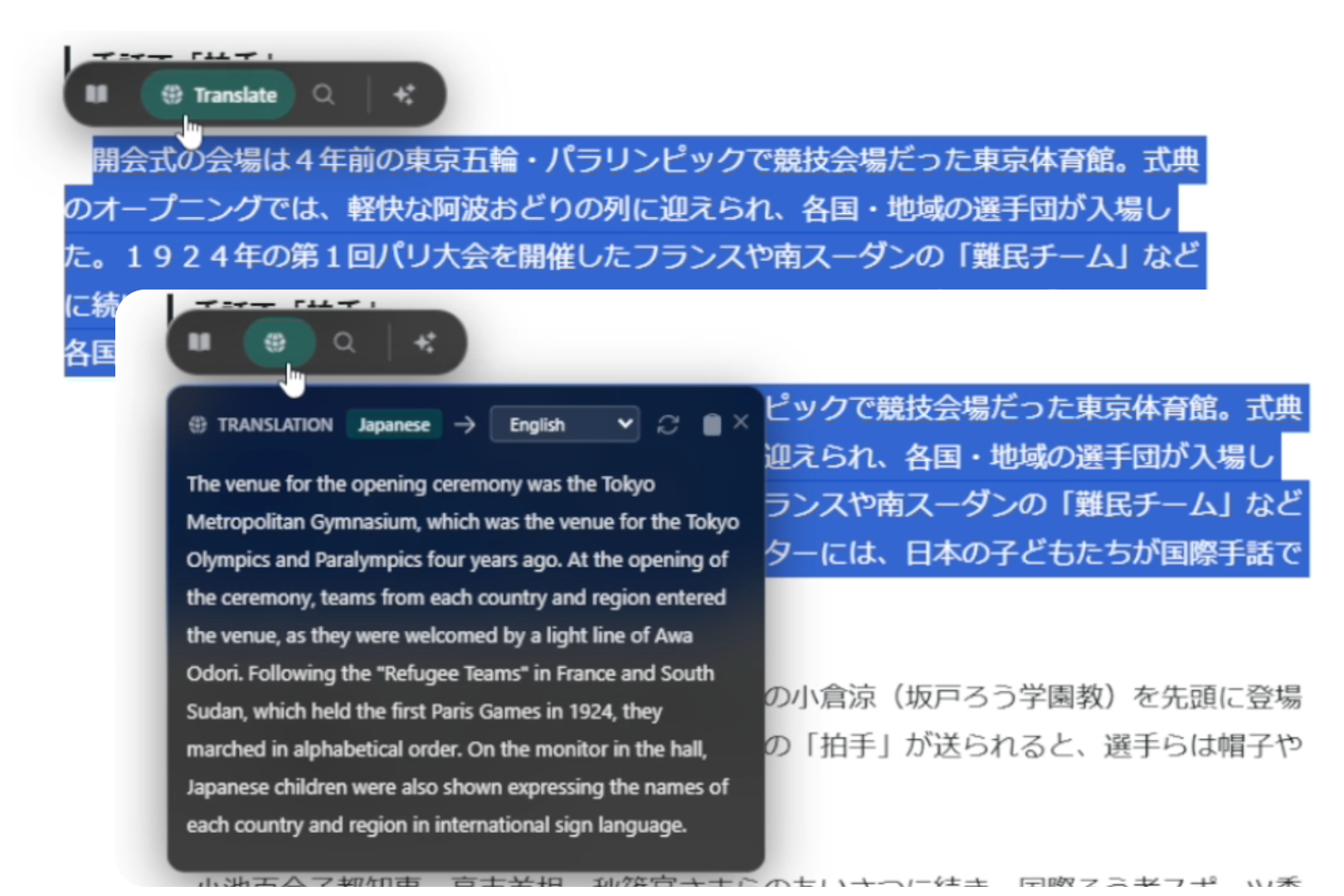
Translate
Auto-detects the source language. You pick the target. Once translated, you can regenerate, copy, or speak the result.
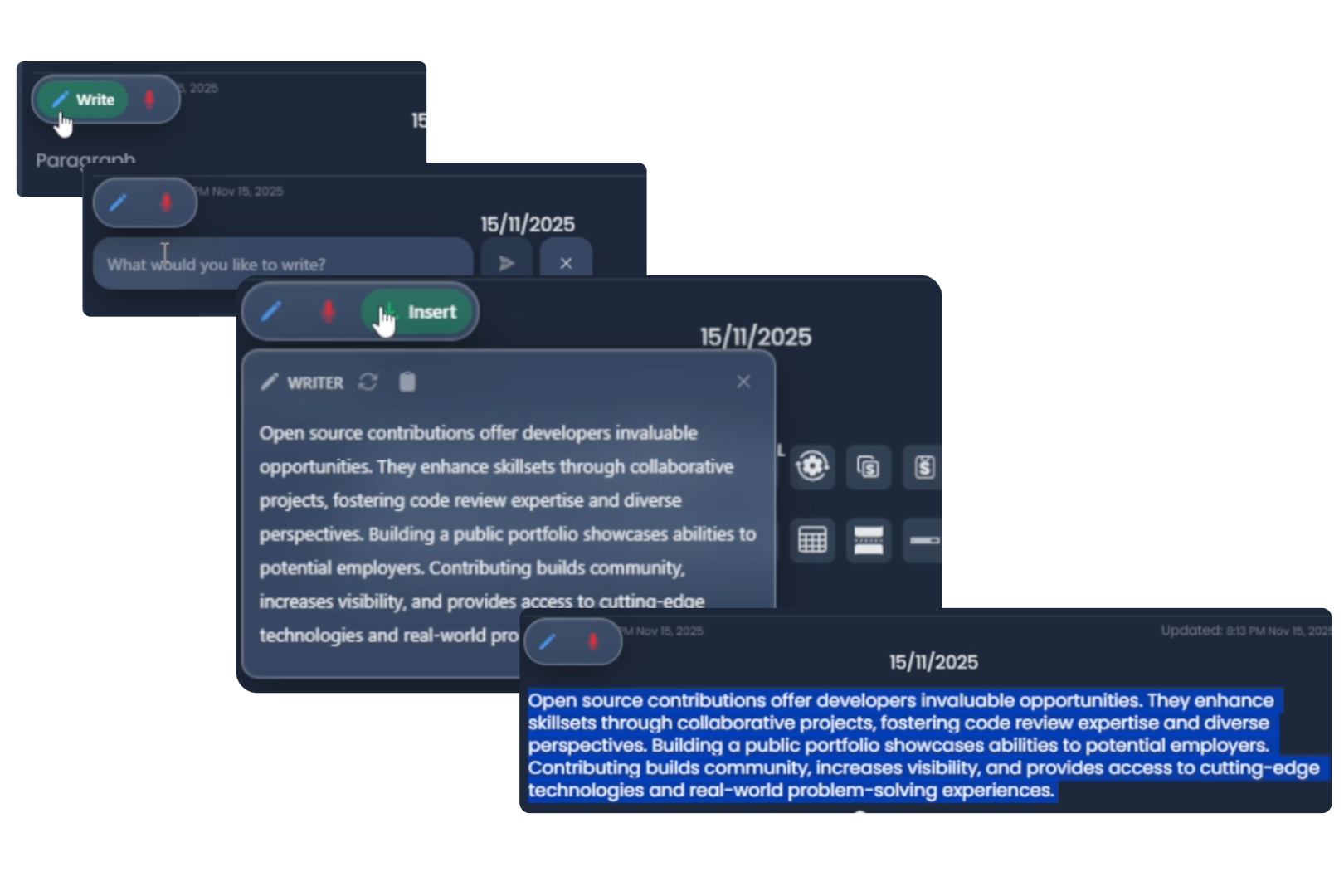
Writer
For when there's nothing selected yet and you want to generate content into an input field. Give it a short prompt (a draft, a reply, a paragraph) and it inserts the result.
Dictionary and language tools
- Definition: explains the selected word
- Synonyms / Antonyms: alternative phrasing
- Pronunciation: how it's said
- Examples: usage in context
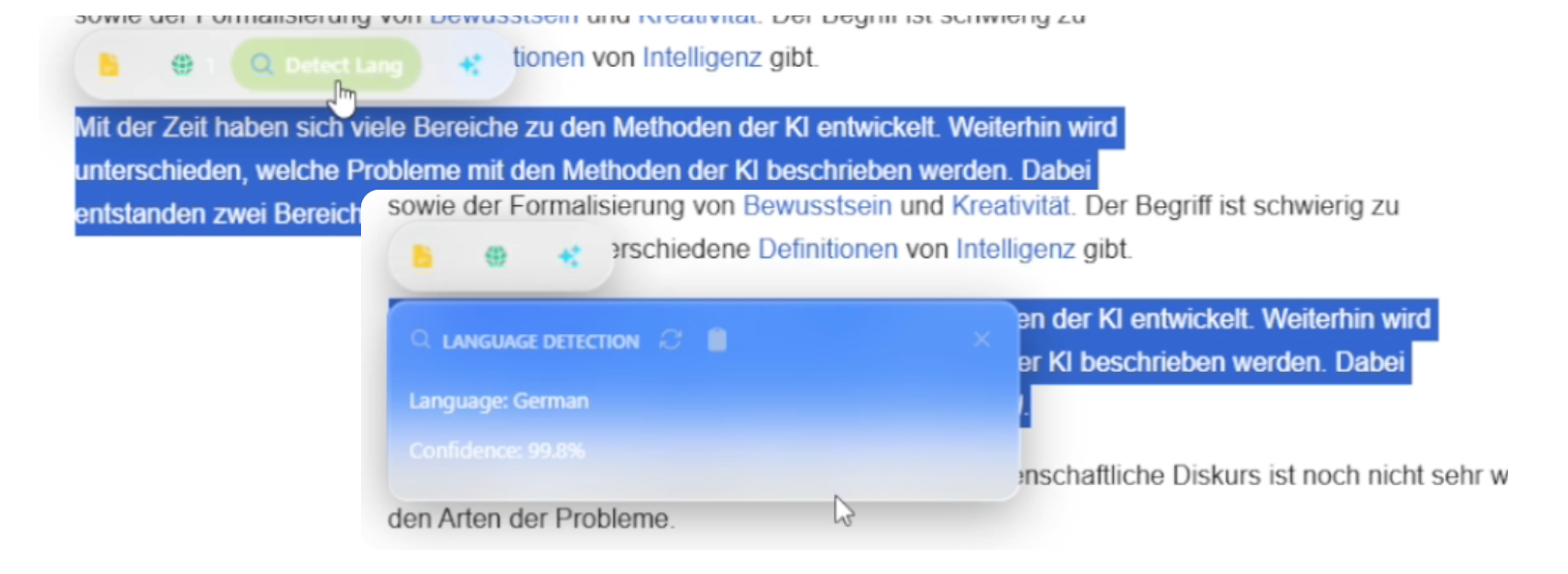
- Language Detection: useful before translating an unfamiliar passage
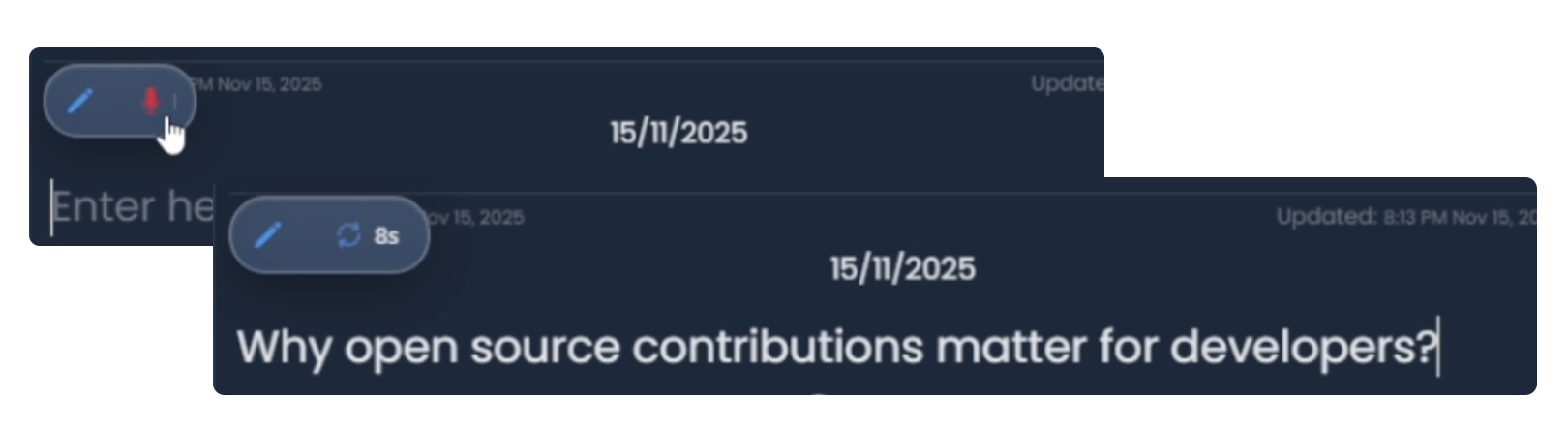
Dictation in inputs
If Show on Input Focus is on (Settings → UI), clicking into any editable field can bring up the toolbar. Dictation records your speech and inserts it at the cursor position, directly into the field you're editing rather than into the main chat.
Image tools
If Show on Image Hover is on (Settings → UI), hovering an image shows:
- Describe image
- Extract text
- Identify objects
Quick visual analysis without having to drag the image into a chat window.
Output area
Results appear in the toolbar's output area before you do anything with them:
| Action | What it does |
|---|---|
| Regenerate | Runs the same action again for a different result |
| Copy | Copies the current output |
| Speak | Reads the result aloud (when TTS is available) |
| Target language picker | Appears on translation results. Switch output language without rerunning. |
Add to Chat
Add to Chat sends the selected content directly to the chat window without running any AI action first. The selected text or the image you hovered appears in the chat input as context, and the chat opens so you can type a follow-up question or continue the conversation from there.
It appears on text selections (when the toolbar is not showing from an input-focus dictation trigger) and on image hover. Use it when you want to bring something from the page into a longer conversation rather than running a one-shot action in the toolbar.
Toolbar vs full chat
Use the toolbar for anything that starts from something already on the page. Use full chat when the request is multi-step, needs more context, or belongs in a saved conversation.