
Chat and Voice
The chat window is where full conversations happen: typed or spoken, with attachments, and saved history.
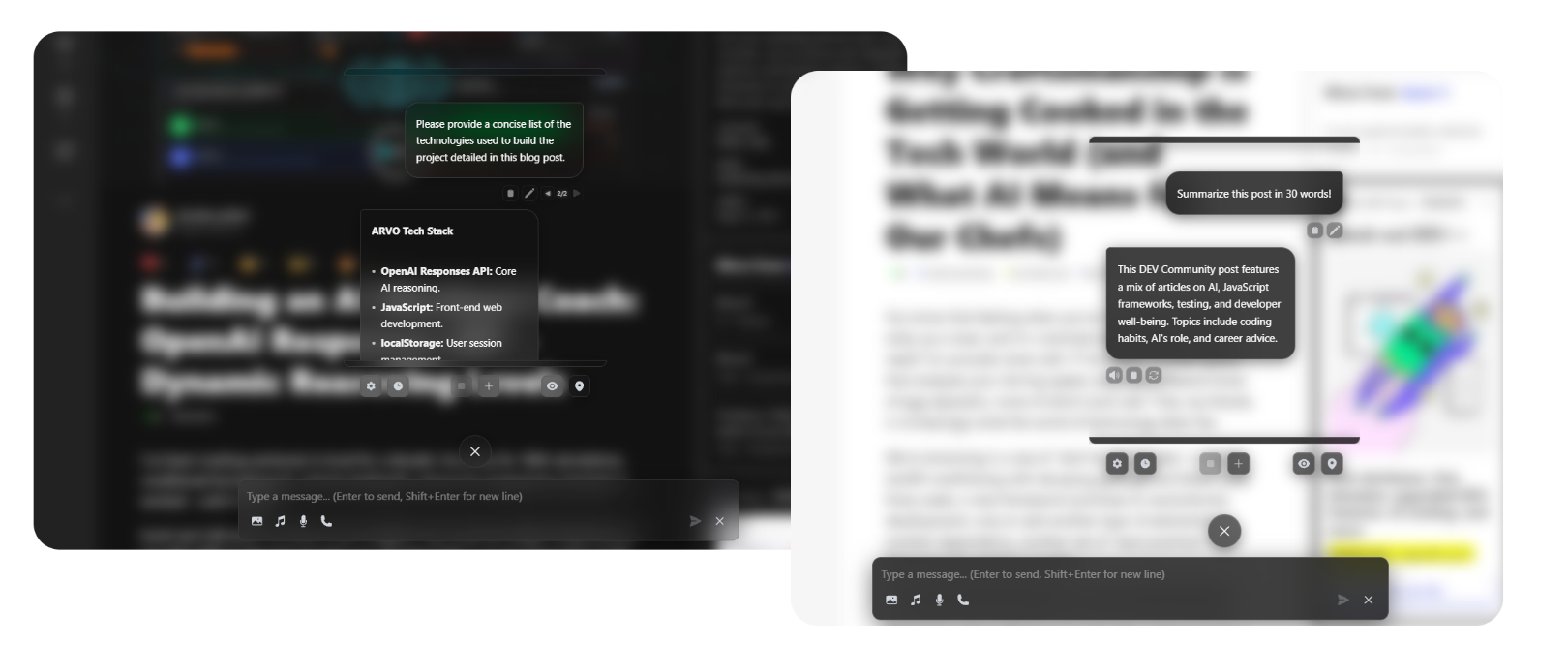
Opening chat
- Click the floating chat button to open the chat view.
- On desktop, a lightweight input window is also available separately from the main window.
- If the avatar is off, VAssist opens in chat layout by default.
Starting and continuing conversations
Each time you send your first message in a blank session, VAssist creates a new conversation and saves it automatically.
To reopen a conversation, open Chat History and select an entry. On Android and in desktop App or attached Wallpaper mode, use the sidebar button at the top left. In floating and detached desktop windows, choose Chat history from the chat controls menu. Web and extension layouts show a history button in the chat panel.
Chat window controls
Open the Chat options or Chat controls menu for New chat, Temporary, Hide / Show character, and Settings, where available. Temporary chat is not saved to history. Select the temporary chat indicator to turn it off. When a reply is generating, the composer also offers a stop control.
Choose Fade messages in the chat menu to show recent messages at the bottom of the chat. Each message fades as the next arrives, and the latest fades after eight seconds of inactivity. The countdown waits until generation and speech finish, and pauses while you hover over or focus the message. Choose Show full chat to return to the complete conversation. Fading does not delete messages or change whether the chat is saved. You can also change this in Settings → UI → Chat. Fade mode is not used in XR.
When the avatar is enabled, voice conversation automatically shows recent messages this way, even if the chat panel was closed. Use Show full chat to read the conversation during the call, then Recent messages to return to the overlay. Ending the call returns to your regular chat setting.
On Android and in desktop App or attached Wallpaper mode, history opens as a sidebar. Its bottom controls include New chat and Settings. In floating desktop mode, chat controls sit beside the chat button on the assistant dock. With separate windows, the avatar and detached chat each have access to the controls. The composer’s plus menu holds attachments and input options.
Typing and attaching files
The composer stays compact when empty and expands for focused typing, longer messages, or attachments. The round action beside it changes with the conversation.
| Control | What it does |
|---|---|
| Plus | Opens images, audio files, microphone selection, Thinking, Voice conversation, Quick Access, and Close chat. |
| Microphone | Dictates text into the draft. A live waveform appears while recording. Recording continues until you choose the check mark to finish or X to discard. |
| Voice waveform button | Starts a hands-free conversation when the draft is empty. |
| Send arrow | Sends text or attachments. |
| Stop square | Replaces Send while a reply is generating. Stops the same conversation in the floating desktop input window too. |
Attachments appear inside the composer. Use their X buttons to remove them. Drag and drop and pasting images are also supported.
When the model returns reasoning text, the message shows a collapsible Thought process panel above the answer. Click its header to expand or collapse it. Auto-expand Thinking in Settings → LLM controls whether the panel opens while reasoning is streaming.
While a reply is coming in
Responses stream in as they are generated. While streaming:
- Animate response text gently reveals incoming words, including when a response arrives in large chunks. Turn it off in Settings → UI → Chat to display text immediately.
- The composer’s Stop button cancels generation. The chat window’s Stop control also stops TTS playback.
- If TTS is on, the reply is spoken as it streams.
- You can keep typing while the reply comes in. Sending a new message will not interrupt the current one.
- Smooth Response Animation (Settings and UI) controls whether the container height animates as text grows.
Message actions
Hover over or focus a message to see its actions. On touch devices, tap a message to reveal or hide them:
| Action | What it does |
|---|---|
| Copy | Copies the message text. |
| Edit | Edits your sent message and resends. You can also remove attachments from here. |
| Regenerate | Generates another reply from the same prompt. Both versions are saved as branches. |
| Play / Stop TTS | Replays an assistant message through your TTS provider. |
| Previous / Next branch | Steps through alternate replies for that message. |
Voice mode
Choose the waveform button beside an empty draft, or Plus > Voice conversation, to start. A flowing line responds to microphone and reply audio. The monochrome waveform stays within the compact input bar and returns to a quiet line in silence.
| Control | What it does |
|---|---|
| Stop inside the bar | Interrupts the current reply. |
| Phone beside the bar | Ends voice mode and returns to the draft. |
| Plus | Attaches an image, selects a microphone or camera, and toggles camera or screen sharing where available. |
Speak naturally. VAssist transcribes what you say, sends it, gets a reply, and speaks it back. Then it returns to Listening and waits for you again.
If you start talking while the assistant is still speaking, Voice Activity Detection (VAD) automatically detects your voice and interrupts the current reply. You do not need to tap the interrupt button for this. Just speak.
INFO
Camera and screen share are available in voice mode on desktop and the browser extension. They are not available on Android.
INFO
Voice quality depends on your STT and TTS provider setup. If transcription or speech output is not working, check Settings and STT and Settings and TTS.
AI persona and system prompts
The AI behavior is controlled by the active system prompt profile in Settings and LLM and Profiles. The default is a general assistant. You can create your own: a coding assistant, a writing partner, a specific character. Changes apply to the next message.
Quick access panel
Choose Plus > Quick Access in the composer to open a compact overlay panel without leaving the chat. Use it to change common settings.
| Section | What you can change |
|---|---|
| Enable Avatar | Persistently enable the 3D avatar or switch to chat-only mode. Available when the host includes the Live Assistant. |
| XR (desktop) | Open the paired XR browser. Enable Avatar first. More opens desktop XR configuration. |
| LLM Provider | Switch AI provider, apply a saved backend profile, pick a model, change the active system prompt, and set Thinking and its effort when supported. |
| Text-to-Speech | Toggle TTS on/off and switch provider. |
| Speech-to-Text | Toggle STT on/off and switch provider. |
| Interface | Change the assistant theme, enable or disable the AI toolbar, set Auto-expand Thinking, and toggle Temporary Chat (messages are not saved to history). |
Each section has a More link that jumps straight to the corresponding settings tab if you need deeper configuration.
Live Assistant reactions during chat
- Spoken output drives lip sync and can shift the Live Assistant animation state.
- If an emote is playing, a progress bar shows in the Live Assistant area.