
Live Assistant
The live 3D assistant sits alongside the chat and page tools. It animates, reacts while you talk to it, plays emotes, and stays visible while you work on other things. You can swap avatars and motions from the assistant controls without touching Settings. Supported native app and wallpaper modes also offer stage selection.
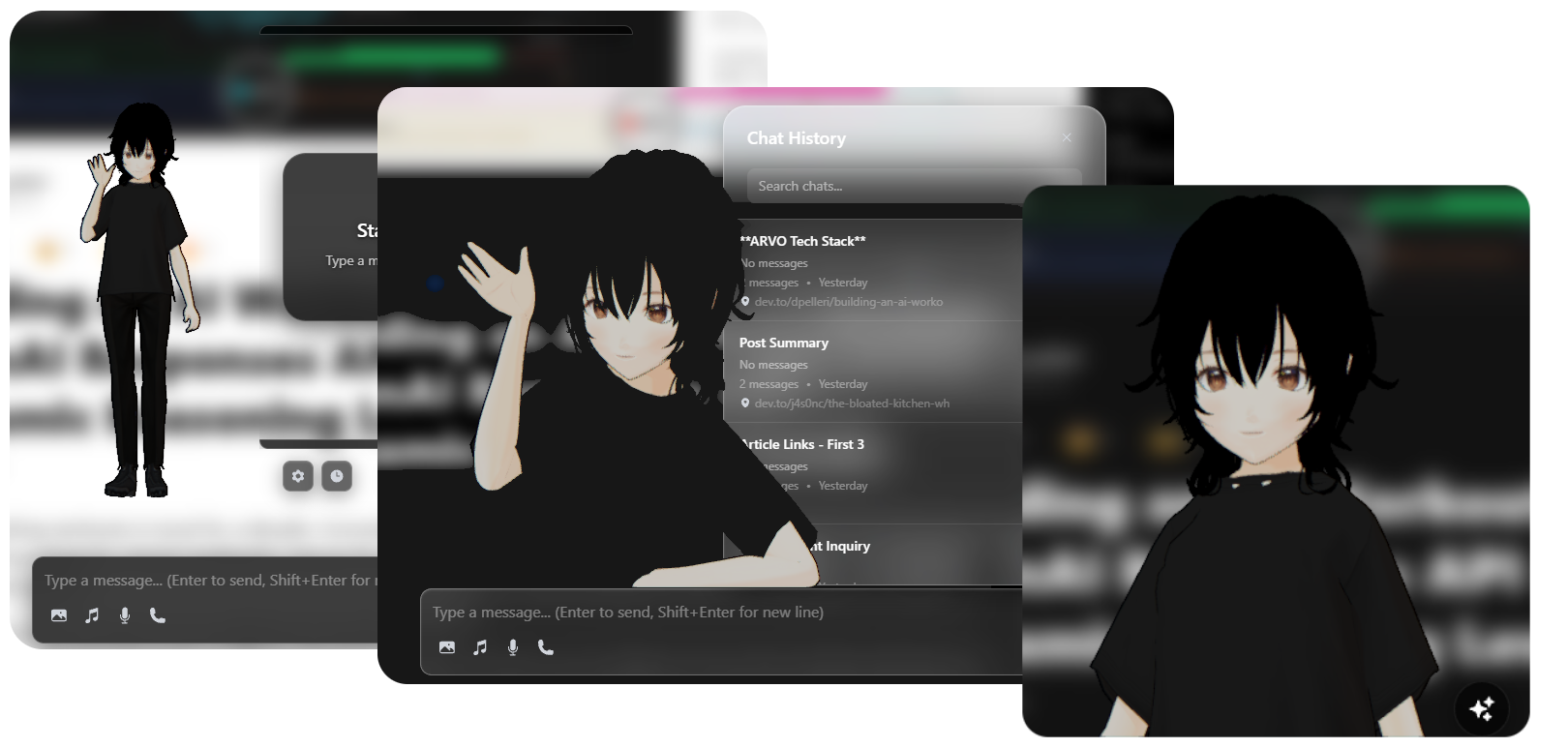
What it does while you use VAssist
- Renders the current avatar, with optional stages on supported native surfaces.
- Switches between animation states: idle, thinking, talking, walking, celebration.
- Lip-syncs during spoken reply playback when your TTS setup supports it.
- Displays short assistant output in a floating chat bubble near the model.
- Plays emotes: combinations of motion, audio, and optional camera movement.
The floating button cluster
When the avatar is visible, a vertical stack of buttons sits near the Live Assistant:
| Button | Icon | What it does |
|---|---|---|
| Chat button | AI spark or chat icon (X to close) | Opens chat. Drag the dock to reposition it in chat-only mode or floating desktop mode. Shows an attachment icon when a file is dragged over it. |
| Zoom control | + / - / reset | Zooms the Live Assistant view in or out, and resets back to default size. |
| Avatar button | person outline | Opens the avatar picker and camera controls. |
| Stage button | box | Opens the stage picker and quick environment controls on supported native surfaces. |
| Emote button | music note (spins while playing) | Opens the emote list. |
| Reload button | refresh arrow | Reloads the page. |
Use the chevron just above Chat to fade the other dock buttons out or show them again. Chat and the chevron stay available, and your choice is saved. Controls start expanded.
In floating desktop mode, the chat controls menu sits beside the chat button. It provides chat history, new chat, temporary chat, settings, and other available options. In detached mode, the menu is available on both the avatar and chat windows.
Switching avatars and stages
Click the avatar button to open the picker panel. It lists all your imported models starting with VAssist Default.
- Click any model to switch immediately. A check mark shows the current selection.
- In Desktop App and Wallpaper modes and on Android, click the separate stage button to choose an environment. The picker stays open while switching stages. The stage button and stage are unavailable during Android AR. AR shows the camera view and placed avatar, then restores the selected stage after exit.
- No Stage uses your background settings. Stage settings include studio environments, rooms, and custom imports.
The stage picker uses the same narrow pill list as the avatar picker, with hidden scrollbars. Long lists fade at the edges in floating and detached desktop windows. Click the stage dock button again to close it. Below the list, a season pill chooses automatic seasons or a specific season. Small icon buttons control motion, avatar shadows, seasonal effects, environment animation, brightness, and lighting presets where supported. Inactive toggles appear faded. Hover or focus a button to see its label. Changes preview immediately and save automatically.
Click the clock icon to open a centered time dial. Click or drag around the ring to choose a time. Releasing saves and closes it. Click outside or press Escape to dismiss it. With a keyboard, arrow keys adjust time and Enter confirms. The local time icon follows the device clock. Quiet stages move their key light through the day, so their shadows change direction with the time. These controls update the environment without resetting the avatar or its emote camera.
Camera controls (below the avatar list)
When the avatar panel is open, a row of small buttons appears below the model list:
| Button | What it does |
|---|---|
| 2D / 3D (highlighted when 3D) | Toggles between flat 2D framing and a free 3D camera. |
| Reset camera (refresh icon) | Snaps the camera back to its default position. |
| Lock / Unlock (lock icon, highlighted when unlocked) | Freezes or releases camera movement. |
| Pin position (pin icon, highlighted when saving) | Saves dragged camera placement across sessions. Turn off to stop saving. |
| Sticker Border | Toggles the avatar outline. Change its color or thickness in Settings → 3D → Display. |
Playing emotes
Click the emote button to open the emote panel.
- Use the category dropdown at the top to filter by category.
- Click any emote name to play it immediately. A spinning icon marks the currently playing emote.
- Click the emote button again to close the panel. The emote keeps playing in the background.
The emote panel also shows an auto-play toggle and category selector so the Live Assistant plays emotes automatically during matching animation states.
Emote playback bar
When an emote is playing, a progress bar appears near the Live Assistant showing elapsed time and duration. You can pause, resume, or stop from there.
Positioning and framing
- Drag the Live Assistant to reposition it on supported runtimes.
- Turn on Pin position (pin icon in camera controls) to remember where you dragged it. Turn it off and the Live Assistant resets to the preset position on next load.
- Portrait Mode (Settings → 3D) crops to an upper-body framing. Standard mode shows the full body.
Chat-only mode
If you turn the avatar off, VAssist keeps working. It just becomes a chat-first interface. The Chat Window Position setting in Settings → UI controls where the chat sits in that mode.
Android live wallpaper
On Android, the Live Assistant can run as a live wallpaper. It's the same model, motions, and emote library, just rendered as a wallpaper view instead of an in-app overlay. Do setup in the main app first. The wallpaper reads those saved settings.
Live Assistant in VR
Use your avatar, stages, and chat in VR with floating controls. XR is experimental and requires a compatible headset, a WebXR browser, and native HTML-in-Canvas support.
Enter VR
- Connect your headset and enable Canvas Draw Element in a supported Chromium browser, then restart the browser.
- Enable and load your avatar. On desktop, open the dock’s headset button and choose Open in XR. Browser and embed users can open the headset button directly where XR is available.
- In the browser, choose Enter VR. The palette shows any missing requirements.
You can use the browser independently or pair it with desktop to access desktop conversations, libraries, and AI providers. For a separate headset, configure HTTPS sharing there first. Quest Browser support is experimental and the interface may stop visually updating during immersion.
Controls
- Dock: choose avatars, stages, motions, and zoom. Open chat for your conversation and voice controls.
- Controllers: point and select. The right thumbstick moves you. The left turns, or scrolls when pointing at a panel.
- Panels: grab the six-dot handle to reposition a panel. Use Pin / Follow to keep it in place or following your view.
- Headset palette: enable hand tracking before entry, recenter your view, or choose Exit VR.
Changing the avatar may leave VR while it reloads. Choose Enter VR again afterward.